Getting Started with Python
Key Concepts: Virtual Environments, IDEs, and More
7 min read
The vocabulary problem
When you start learning Python, you'll quickly run into terms that nobody stops to explain. Words like "terminal," "virtual environment," "IDE," and "pip" get thrown around as if they're obvious — and they're not.
This lesson defines those terms clearly, once, so you don't have to pause and search every time they come up.
The Terminal (or Command Prompt)
The terminal is a text-based window where you type commands and the computer responds with text. It has no icons or buttons — just a blinking cursor waiting for you to type something.
On Mac it's called Terminal. On Windows it's called Command Prompt or PowerShell. They serve the same purpose.
You've already used the terminal if you followed the installation lesson to verify Python was installed.
Why it matters for Python: Python programs are often run from the terminal. When something goes wrong, error messages appear in the terminal. Many Python tools — including pip and virtual environments — are controlled entirely through terminal commands.
Basic terminal commands you'll use:
| Command | What it does |
|---|---|
python --version | Check your Python version |
python myfile.py | Run a Python program called myfile.py |
pip install pandas | Install a library called pandas |
cd Desktop | Navigate to a folder called Desktop |
ls (Mac) / dir (Windows) | List the files in the current folder |
pip — Python's Package Installer
pip stands for "Pip Installs Packages." It's a command-line tool that comes with Python and lets you download and install libraries from the internet with a single command.
For example, to install the popular data science library pandas:
pip install pandas
That's it. pip reaches out to the internet, downloads pandas, and installs it so your Python programs can use it.
To install multiple libraries at once:
pip install pandas matplotlib scikit-learn
To see what's currently installed:
pip list
You'll use pip constantly as a Python developer.
Virtual Environments
This one confuses almost every beginner at first. Let's build up to it.
The problem virtual environments solve
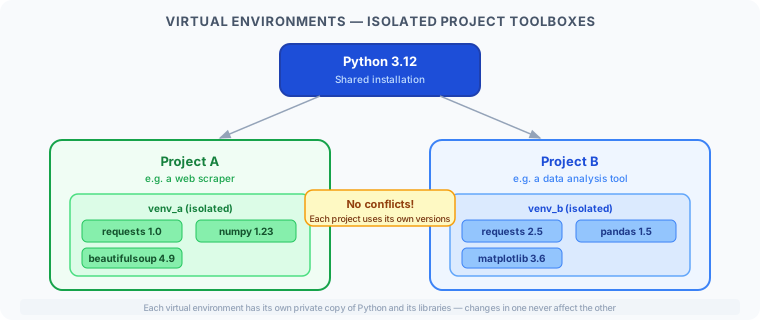
Imagine you're working on two different Python projects:
- Project A uses version 1.0 of a library called
requests - Project B needs version 2.5 of the same library because it uses newer features
If you install requests 2.5 globally, Project A might break. If you stick with requests 1.0, Project B won't work. You can't have two versions of the same library installed at once — unless you use virtual environments.
What a virtual environment is
A virtual environment is an isolated, self-contained copy of Python and its libraries — specific to one project. It's like giving each project its own private toolbox, separate from every other project.
How to create and use one
Create a virtual environment (inside your project folder):
python -m venv myenv
This creates a folder called myenv that holds the isolated Python setup.
Activate it:
- Mac/Linux:
source myenv/bin/activate - Windows:
myenv\Scripts\activate
Once activated, your terminal prompt will change to show (myenv) at the start — that's how you know it's active.
Install libraries inside it:
pip install pandas
Libraries installed now go inside the virtual environment, not globally.
Deactivate it when done:
deactivate
For beginners, you don't need to use virtual environments for simple single-file scripts. But for any project with more than a handful of files, they're considered standard practice.
IDE — Integrated Development Environment
An IDE (pronounced by spelling out the letters: "I-D-E") is a software application for writing code. It's like Microsoft Word, but for programming.
A good IDE provides:
- Syntax highlighting — colors different parts of your code so it's easier to read
- Auto-completion — suggests what you might be typing next
- Error detection — underlines problems before you even run the code
- Integrated terminal — run your programs without switching windows
- Debugging tools — pause your program mid-run to inspect what's happening
Popular Python IDEs
VS Code (Visual Studio Code) — Free, lightweight, extremely popular. Works for Python and dozens of other languages. The most widely used editor across the industry.
PyCharm — Python-specific IDE by JetBrains. Very powerful, with a Community (free) edition that's excellent for beginners. Has deeper Python-specific features than VS Code out of the box.
Spyder — Scientific Python Development Environment. Particularly popular with data scientists. Looks similar to MATLAB.
Thonny — Designed specifically for Python beginners. Simpler interface, built-in Python, very forgiving. Good for absolute beginners before switching to VS Code or PyCharm.
For this course
For beginners, VS Code or Thonny are recommended starting points. Both are free and widely documented. Many tutorials you'll find online use VS Code.
Jupyter Notebooks
A Jupyter Notebook is a different kind of Python environment — not a traditional script editor. Instead of writing one big program file, you write and run code in small chunks called cells.
You run each cell individually and see the output immediately below it — like a live, interactive document.
This makes notebooks ideal for:
- Learning Python (run one concept at a time)
- Exploring data (try something, see the result, adjust)
- Teaching and sharing (mix code, explanations, and charts in one file)
The workbook used as the source for this course was a Jupyter Notebook. Notebooks use the .ipynb file extension.
Google Colab is a free, browser-based Jupyter environment. You can start using it immediately without installing anything.
Putting it all together
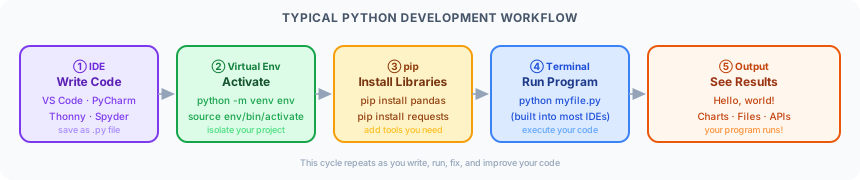
Here's how these pieces connect in a typical Python workflow:
- You open your IDE and write Python code in a
.pyfile - You activate a virtual environment to keep your project's libraries separate
- You use pip to install any libraries your code needs
- You open the terminal (often built into your IDE) to run the program
- Python executes your code and shows output in the terminal
Quick reference glossary
| Term | What it means |
|---|---|
| Terminal | Text-based window for running commands |
| pip | Tool for installing Python libraries |
| Virtual environment | Isolated Python setup for one project |
| IDE | Software for writing and running code |
| Jupyter Notebook | Interactive document with runnable code cells |
| Library / Package | Pre-written code you can import and use |
| .py file | A plain text file containing Python code |
| .ipynb file | A Jupyter Notebook file |
Key takeaway
The terminal, pip, virtual environments, and IDEs are the environment Python lives in. None of them are Python itself — they're the tools that surround it. Understanding what each one does removes a lot of the confusion beginners feel when they leave the tutorial and try to work on a real project.
What's next?
Now that you understand the environment, it's time to write your first Python program. The next lesson covers your very first line of code: the classic "Hello, World!"