Getting Started with Python
Installing Python on Windows and Mac
5 min read
Before you begin
Python doesn't come pre-installed on Windows. On Mac, an older version may already exist, but it's best to install a fresh, current version so you're working with the same Python everyone else is using.
This lesson walks through installation on both operating systems. The whole process takes about 5–10 minutes.
What version should I install?
Python releases new versions regularly. You want the latest stable release — not a preview or beta. As of 2025, that's Python 3.12 or newer.
The "3" matters: there used to be a Python 2, which worked differently. It's no longer supported. Everything in this course assumes Python 3.
Installing on Windows
Step 1 — Download the installer
- Open your web browser and go to the official Python website: python.org
- Hover over the Downloads menu at the top
- You'll see a button that says something like "Download Python 3.x.x" — click it
- A file called something like
python-3.x.x-amd64.exewill download to your computer
Step 2 — Run the installer
- Find the downloaded file (usually in your Downloads folder) and double-click it
- A setup window will open
Important: Before clicking anything else, look for a checkbox at the bottom of the window that says "Add Python to PATH". Check that box. This step is easy to miss and causes problems later if skipped.
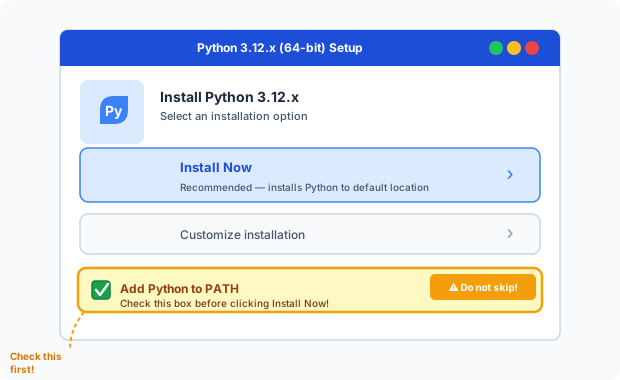
- Click "Install Now" (the top option)
- If Windows asks "Do you want to allow this app to make changes to your device?" — click Yes
- Wait for the progress bar to complete
- Click Close when the installation finishes
Step 3 — Verify the installation
- Press the Windows key, type
cmd, and press Enter to open a command prompt - Type the following and press Enter:
python --version - You should see something like
Python 3.12.4— the exact version you installed
If you see that, Python is installed and working correctly.
Installing on Mac
Mac computers sometimes ship with a very old version of Python pre-installed (Python 2.7), but it's hidden away and not meant for general use. You'll install a proper, current version using a tool called Homebrew — which is the most reliable approach.
Step 1 — Install Homebrew (if you don't already have it)
Homebrew is a "package manager" — a tool that makes installing software on Mac easy from the terminal.
- Open Terminal (press
Command + Space, type "Terminal", press Enter) - Paste the following command and press Enter:
/bin/bash -c "$(curl -fsSL https://raw.githubusercontent.com/Homebrew/install/HEAD/install.sh)" - Follow the prompts — it may ask for your Mac password (the characters won't appear as you type, that's normal)
- Wait for it to complete — this can take a few minutes
Already have Homebrew? Skip to Step 2.
Step 2 — Install Python via Homebrew
In the same Terminal window, type:
brew install python
Press Enter and wait for the download and installation to complete. Homebrew will install the latest stable Python 3 version automatically.
Step 3 — Verify the installation
In Terminal, type:
python3 --version
You should see something like Python 3.12.4.
Why
python3and notpython? On Mac,pythonmay still point to the older system version. Usingpython3ensures you're running the version you just installed. Over time this distinction matters less, but it's a useful habit.
Alternative: No installation needed right now
If you'd prefer to start writing Python immediately without any installation, there are free online environments that run Python in your browser:
- Google Colab (colab.research.google.com) — the most popular choice, runs instantly in a browser tab, free with a Google account
- Replit (replit.com) — browser-based code editor with Python support
- Python.org shell — the official Python website has a simple interactive shell you can use immediately
These are perfectly valid for learning. You can always install Python locally later when you want to work offline.
Troubleshooting common issues
"Python is not recognized as an internal or external command" (Windows) This means Python wasn't added to PATH during installation. Re-run the installer, uncheck all boxes, then check only "Add Python to PATH" and reinstall.
"command not found: python" (Mac)
Try python3 instead of python. If that also fails, Homebrew may not have finished installing — run brew doctor in Terminal to check.
The installer asks to "Disable path length limit" (Windows) Click it. This removes a Windows restriction that can cause problems with some Python libraries.
Key takeaway
Installing Python takes 5–10 minutes. On Windows, the key step is checking "Add Python to PATH" before clicking Install. On Mac, Homebrew is the most reliable approach. Once installed, verify it worked by running python --version (Windows) or python3 --version (Mac) in a terminal window.
What's next?
Python is installed — now let's understand the tools and concepts that surround it: virtual environments, IDEs, the terminal, and a few other terms that will come up constantly as you learn.